Open source · Available now

A helpful claw
for your inbox.

OpenClaw-powered writing and reading assistance for Thunderbird. Generate thoughtful suggestions, review every change, and keep the final say.

  1. Generate
  2. Preview
  3. Apply
  4. Undo
ThunderClaw, a teal hermit crab carrying a cream mailbox and offering a letter

Install ThunderClaw

From OpenClaw to your inbox
in four clear steps.

ThunderClaw has two matching parts: a plugin for your OpenClaw Gateway and a signed extension for Thunderbird. Install both, then pair them once.

  1. Get OpenClaw ready

    Use a supported OpenClaw version from 2026.7.2-beta.7 through the 2026.9.7 release line with a configured agent, then confirm that its Gateway is running. Your existing main agent is supported; a dedicated ThunderClaw agent is optional for separate mail personality, workspace, memory, or model configuration.

    openclaw gateway status
    OpenClaw installation guide
  2. Install the OpenClaw plugin

    Install the published package from ClawHub and explicitly accept its declared OpenClaw capabilities, then enable it and restart the Gateway. Device pairing still requires its own later approval.

    openclaw plugins install \
      --accept-capabilities \
      clawhub:@thunderclaw/openclaw-plugin
    openclaw plugins enable thunderclaw
    openclaw gateway restart
    View ThunderClaw on ClawHub
  3. Add ThunderClaw to Thunderbird

    Open the official listing in Thunderbird 128 or newer, choose Add to Thunderbird, and approve the requested permissions.

    Get the Thunderbird extension
  4. Connect and pair

    Open ThunderClaw’s settings in Thunderbird, enter the endpoint shown by your OpenClaw installation, and choose Pair this Thunderbird. Then run the guided approval command:

    openclaw thunderclaw

    Match the approval code, approve the request, then return to Thunderbird to Claim approved pairing and test the connection.


    Detailed pairing and troubleshooting guide

Connecting to another machine? Use an HTTPS endpoint. Plain HTTP is accepted only for explicit 127.0.0.1 or [::1] loopback addresses.

ThunderClaw in action

Helpful when you ask.
Out of the way when you don’t.

Draft with a deliberate preview step, or bring a long message into focus. Every result stays visible, reversible, and yours to accept.

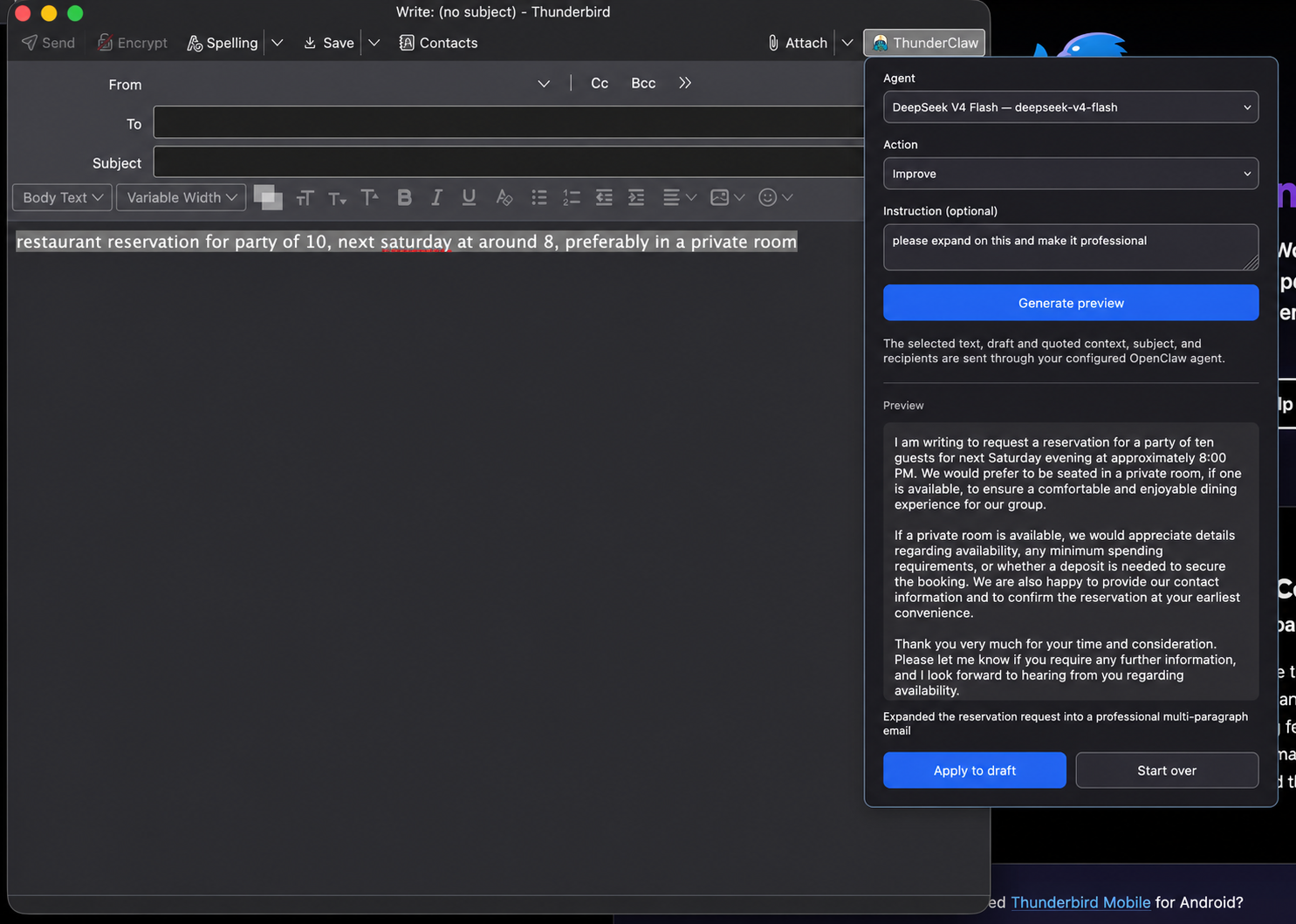
ThunderClaw showing an improved email in a preview beside a Thunderbird compose window
Write with confidence Generate a suggestion, inspect it beside your draft, then decide whether to apply it.
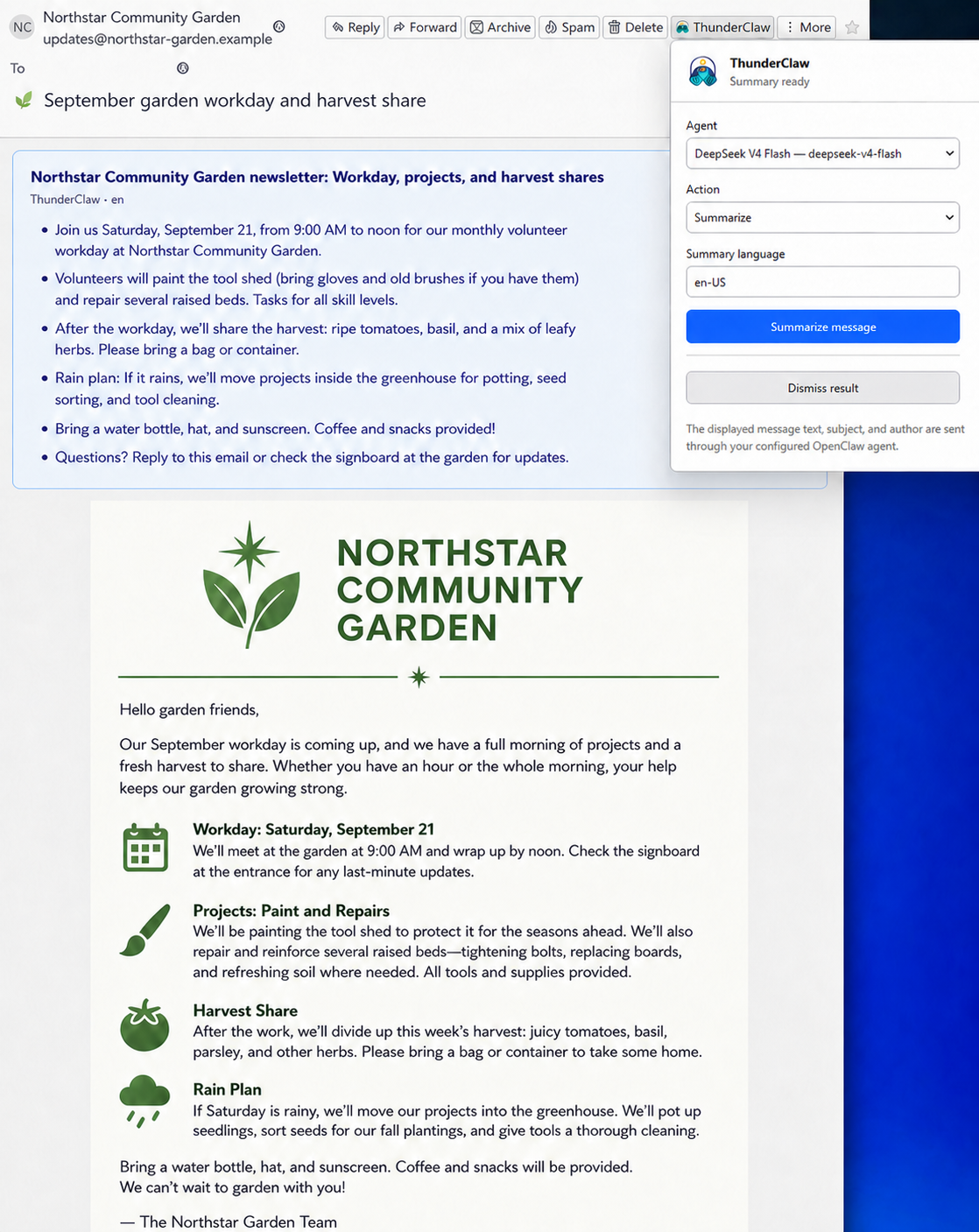
ThunderClaw displaying a summary above the original Thunderbird message
Find the signal Put a plain-text summary above the original message without changing it.
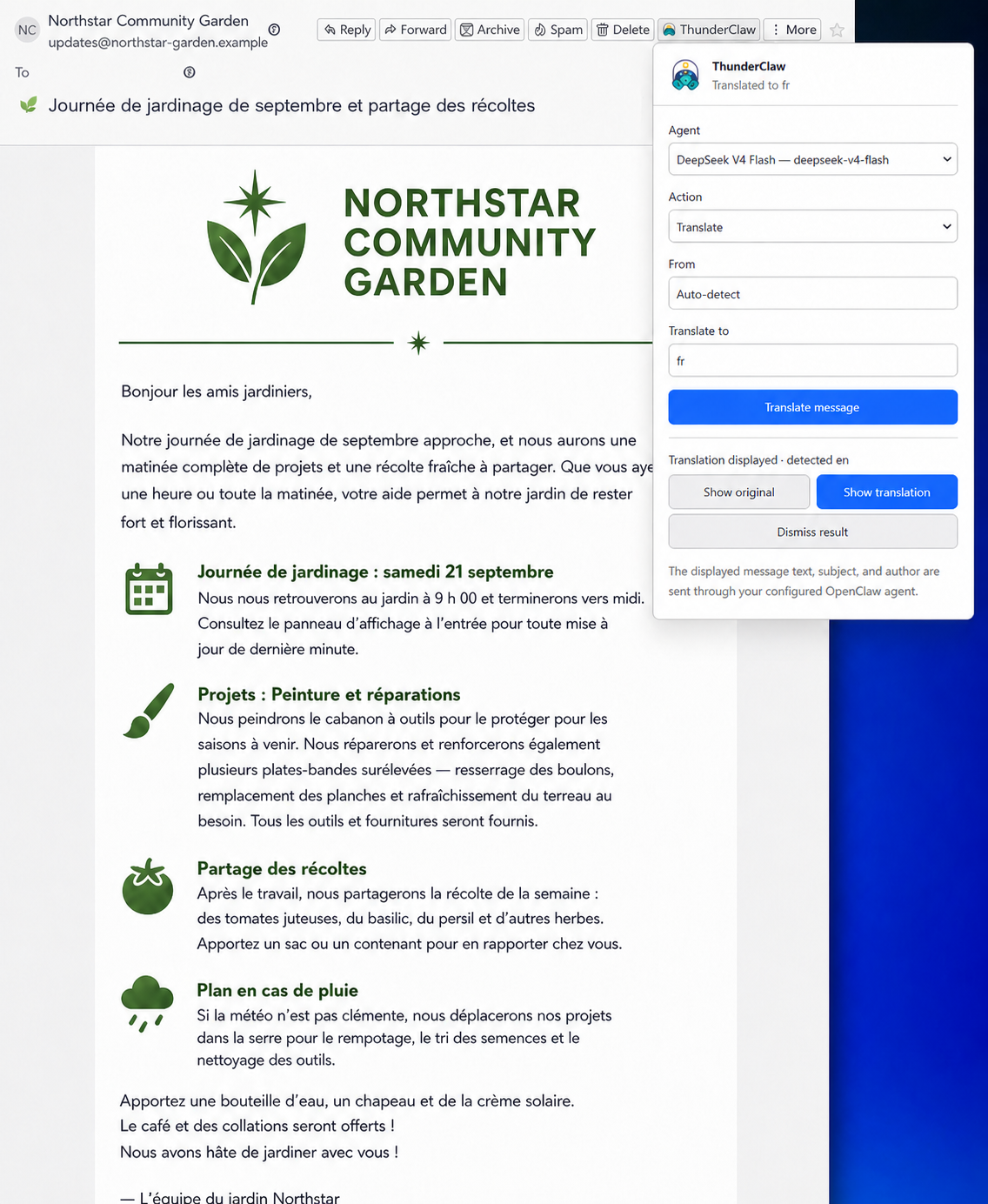
ThunderClaw displaying a French translation with a control to restore the original message
Read across languages Translate visible message text and return to the original with one click.